

Zapier can save your small business 5 to 15 hours per week by automatically connecting the apps you already use, moving data between them without manual copying, pasting, or repetitive clicking. For a Canadian small business owner juggling customer inquiries, social media posts, invoice reminders, and email follow-ups, Zapier acts as a digital assistant that works 24/7, triggering actions in one app based on what happens in another.
The platform requires no coding experience. You create “Zaps” (automated workflows) by choosing a trigger app and an action app, then mapping which information flows between them. A typical example: when someone fills out a contact form on your website (trigger), Zapier adds their details to your email list, sends them a welcome message, and creates a task in your project management tool (actions). What used to take three manual steps now happens instantly, every single time.
Small businesses gain the most value when they automate repetitive marketing and admin tasks: lead capture, appointment confirmations, social media scheduling, payment notifications, and customer onboarding sequences. The free tier supports basic workflows, while paid plans (starting around $20 CAD monthly) unlock multi-step Zaps and premium app integrations.
Success stories from Canadian small businesses show measurable results. A Winnipeg consulting firm cut their client onboarding time from 45 minutes to 8 minutes per new client. A Vancouver e-commerce shop eliminated order entry errors entirely by connecting their Shopify store directly to their accounting software.
This guide walks you through identifying which tasks to automate first, building your initial Zaps step-by-step, and troubleshooting common issues so you spend less time on busywork and more time growing your business.
What You’ll Need to Get Started
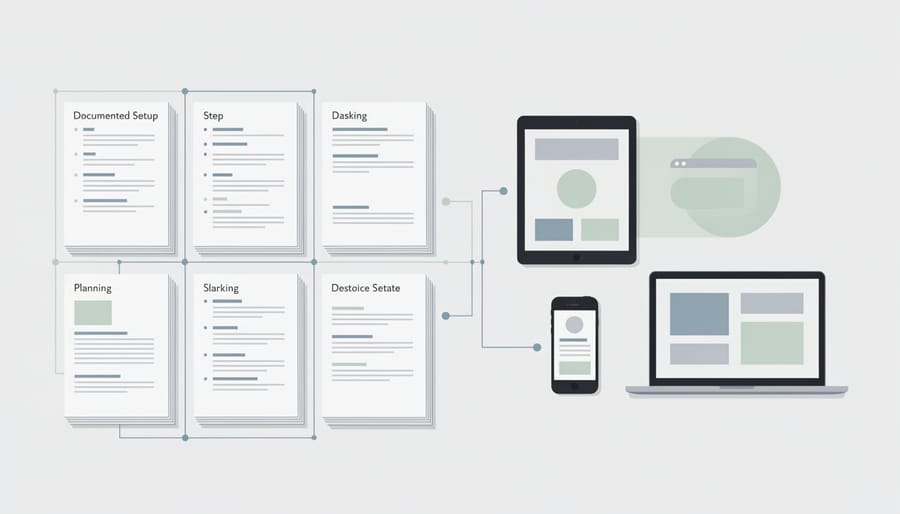
Before you can start automating your marketing workflows, you’ll need a few key items in place. The good news is that most Canadian small businesses already have these tools set up, so gathering everything should take only a few minutes.
First, you’ll need a Zapier account. The free plan works perfectly fine for beginners and includes 100 tasks per month, which is enough to test several simple automations. You can always upgrade to a paid plan later as your automation needs grow.
Next, make sure you have active accounts for the digital marketing tools you want to connect. Common platforms Canadian small businesses use include email marketing services like Mailchimp or Constant Contact, social media accounts (Facebook, Instagram, LinkedIn), CRM systems such as HubSpot or Pipedrive, payment processors like Stripe or Square, and cloud storage solutions such as Google Drive or Dropbox.
Here’s a quick checklist of what you’ll need:
- A Zapier account (free or paid)
- Login credentials for each app you want to automate
- Admin or owner-level permissions in your marketing tools
- API keys or authorization tokens (some apps require these)
- A clear idea of at least one manual task you want to automate
Regarding permissions, you’ll need sufficient access rights in each connected app to create, read, or update data. If you’re not the account owner, check with your team administrator before connecting business-critical tools. Most apps will walk you through the authorization process when you first connect them to Zapier, so you don’t need technical knowledge about APIs or coding to get started.
Important Considerations Before You Automate

Before you start building your first Zap, take a few minutes to understand what could go wrong and how to avoid common pitfalls that trip up newcomers to marketing automation.
Know Your Task Limits
Zapier’s free plan gives you 100 tasks per month, which sounds generous until you realize each time a Zap runs counts as one task. If you automate adding new email subscribers to your CRM and get 150 signups in a month, you’ll hit your limit halfway through. Check your plan’s task allowance before automating high-volume workflows. The Starter plan ($19.99 USD/month) bumps you to 750 tasks, which suits most small businesses getting serious about automation.
Start Small and Test Everything
Resist the urge to automate everything at once. One poorly configured Zap can send dozens of duplicate emails to customers or create chaos in your CRM. Build one automation, run it manually several times with test data, and watch it work for a week before adding more. This gradual approach lets you catch mistakes when they’re easy to fix, not after they’ve embarrassed you in front of clients.
Back Up Your Data First
Before connecting automation tools to your marketing apps, export your current contacts, leads, and customer lists. If something goes sideways during setup, you’ll have clean copies to restore. Most CRMs and email platforms offer one-click CSV exports that take seconds.
Understand App Permissions
When you authorize Zapier to access your marketing tools, you’re granting broad permissions to read and write data. Review what access you’re giving, especially for financial or customer data. Use dedicated admin accounts rather than personal logins where possible, and revoke access for any Zaps you disable.
How to Set Up Your First Marketing Automation

Choose Your Trigger and Action
Start by thinking backward: what do you want to happen automatically? That’s your action. Maybe you want new leads added to your CRM, or social media posts shared across platforms, or welcome emails sent to subscribers. Write down the end result first.
Now identify the trigger, the event that kicks everything off. This is always something happening in one of your apps. Common marketing triggers include a new row in your Google Sheets lead list, a form submission on your website, someone subscribing to your Mailchimp list, or a mention of your business on Twitter.
The trigger-action pair should solve a specific repetitive task. For example: when someone fills out your contact form (trigger), add them to your CRM and send a welcome email (action). Or when you post to Instagram (trigger), share the same content to Facebook and Twitter automatically (action).
Keep it simple for your first automation. Choose a workflow you do manually at least weekly. If you’re constantly copying email addresses from your website contact form into Mailchimp, that’s a perfect candidate. If you manually post the same content to three social platforms every morning, automate it.
Write your trigger-action pair as a sentence: “When [this specific event happens], I want [this specific thing to occur].” This clarity will guide you through the next connection steps and prevent you from building overly complicated automations that are hard to troubleshoot later.
Connect Your Marketing Apps
Once you’ve chosen your trigger and action, Zapier needs permission to access your marketing tools. Click the “Connect” button next to each app in your Zap editor. A pop-up window appears asking you to sign in to that service.
Enter your login credentials exactly as you would to access that platform directly. For most apps, you’ll see a permissions screen explaining what Zapier can and can’t do with your data. Review these carefully, then click “Allow” or “Authorize.” The window closes automatically once the connection succeeds, and you’ll see a green checkmark next to the app name.
Some apps require additional steps. Email platforms like Mailchimp ask you to select which audience or list you’re working with. CRMs might prompt you to choose a specific pipeline or database. Social media tools often require you to pick which business page or profile Zapier should post to. Make these selections thoughtfully since they determine where your data flows.
If a connection fails, double-check your username and password first. Ensure you’re using an account with admin privileges, not a read-only viewer account. Some tools require you to enable third-party app access in your account settings before Zapier can connect. Check the app’s security or integration settings if you’re stuck.
For Canadian businesses using region-specific tools, verify the app has a direct Zapier integration rather than requiring workarounds. The connection process takes two minutes per app once you have login credentials ready.
Map Your Data and Test
Once your apps are connected, you’ll see a series of dropdown menus where Zapier asks you to map fields between the trigger and action apps. This step tells Zapier exactly which piece of information goes where.
For example, if you’re sending new email subscribers from Mailchimp to your HubSpot CRM, you’ll match the “Email Address” field from Mailchimp to HubSpot’s “Email” field. Similarly, “First Name” maps to “First Name,” and so on. Zapier often suggests matches automatically, but always verify they’re correct. A mismatch here means your data lands in the wrong spot or doesn’t transfer at all.
You’ll notice some fields are required (marked with an asterisk) while others are optional. Fill in all required fields at minimum. For optional fields, consider what information matters most for your marketing follow-up. Including company name or phone number might prove valuable later, even if it’s not mandatory now.
After mapping your data, click the “Test” button. Zapier will run your automation once using real data from your trigger app. Check your action app immediately, did the contact appear correctly? Is all the information in the right place? This test catches issues before they affect actual customers.
If the test fails, Zapier shows an error message explaining what went wrong. Common problems include missing required fields, formatting mismatches (like phone numbers), or permissions issues. Fix the problem, then test again until it succeeds.
Activate and Monitor
Once your test runs successfully, click the blue “Publish” button to activate your Zap. It’ll now run automatically whenever the trigger event occurs.
Check your Zap’s task history regularly during the first few days. Access it by clicking on the Zap name, then “Task History” in the left sidebar. You’ll see a chronological record of every automated action, successful runs appear with green checkmarks, while errors show orange or red indicators.
Review failed tasks immediately. Click any error to see what went wrong, whether it’s a missing field, connectivity issue, or permissions problem. Most errors are easy to fix once you identify the cause.
Set up email notifications for task failures in your Zapier settings so you catch problems quickly rather than discovering them weeks later when a customer complains about a missing follow-up.
7 Essential Marketing Automations for Canadian Small Businesses
Here are seven marketing automations that consistently deliver value for small businesses across Canada. Each addresses a common time drain and turns it into a hands-off process.
Lead Capture to CRM: When someone fills out a contact form on your website, automatically create a new contact record in your CRM. Use tools like Gravity Forms or Typeform as triggers, with HubSpot, Pipedrive, or Salesforce as actions. This eliminates manual data entry and ensures no lead falls through the cracks during busy periods. A Vancouver consulting firm reduced their lead response time from four hours to fifteen minutes using this workflow.
Email Welcome Sequences: Trigger a welcome email series the moment someone subscribes to your newsletter. Connect Mailchimp, ConvertKit, or ActiveCampaign to send a personalized sequence introducing your business, sharing valuable resources, and guiding new subscribers toward their first purchase. This automation nurtures relationships while you focus on existing customers.
Social Media Cross-Posting: Publish once, appear everywhere. When you post to Instagram, automatically share the same content to Facebook, Twitter, and LinkedIn. This works particularly well for visual businesses like retailers, restaurants, and service providers who want consistent presence without managing four separate platforms. Buffer and Hootsuite integrate seamlessly for this purpose.
Customer Feedback Collection: After a purchase or service completion, automatically send a feedback request via email or SMS. Connect your e-commerce platform (Shopify, WooCommerce) or booking system to Typeform or SurveyMonkey. A Calgary landscaping company increased their review count by 340% within three months using this simple automation, and those reviews now drive significant new business.
Abandoned Cart Follow-Ups: When shoppers add items but don’t complete checkout, trigger a reminder email after two hours and a discount offer after 24 hours. Shopify and WooCommerce both support this workflow natively through Zapier. Recovery rates of 15-20% are common, turning lost sales into revenue without any manual intervention.
Event Registration Management: Automatically add registrants to your email list, send calendar invites, and update your spreadsheet when someone signs up for a webinar or workshop. Eventbrite, Zoom, and Canadian digital tools like Keap integrate smoothly. This keeps your team coordinated and ensures attendees receive all necessary information.
Monthly Reporting: Pull data from Google Analytics your email platform, and social media accounts into a single spreadsheet or Slack message on the first of each month. Instead of spending two hours compiling reports, you get automated insights that help you spot trends and adjust strategy. A Toronto marketing agency now reviews performance metrics in ten minutes instead of half a morning.
Start with the automation that addresses your biggest time drain, then add others as you gain confidence.
Testing Your Automations and Fixing Common Issues
After your Zap goes live, verification becomes your safety net. Check the task history in your Zapier dashboard within 24 hours of activation. Look for green checkmarks confirming successful runs and review the details of at least the first three tasks. Click into individual task entries to see exactly what data moved between apps, catching mapping errors before they multiply.
Open your destination apps directly to confirm the data landed correctly. If your Zap sends leads to your CRM, log into the CRM and verify contact records appear with all fields populated as expected. Missing phone numbers, truncated notes, or incorrect tags signal mapping problems that need immediate fixes. For email automations, send yourself test messages to check formatting, links, and personalization merge fields.
Failed tasks show up with red X marks in your history. Common culprits include expired app connections, deleted records in source apps, or mandatory fields left blank. Reconnect apps by clicking the warning banner and re-authorizing access. For missing data errors, return to your Zap editor and ensure every required field in the action step maps to an actual data source from your trigger.
Duplicate entries usually mean your trigger fired multiple times for the same event. Switch from “New or Updated” triggers to “New Only” triggers when possible, or add filters to prevent re-processing. If a contact updates their email address and that creates a duplicate CRM record, adjust your action step to “Update or Create” instead of “Create” only.
Watch for warning signs like unusually high task counts, which might indicate a trigger loop where one Zap accidentally activates another repeatedly. Pause both Zaps, identify the circular connection, and restructure your workflow. Keep your automations simple at first; complex multi-step Zaps amplify small errors into bigger problems.
Real Success Story: How a Toronto Retailer Saved 10 Hours Weekly

When Sarah Chen opened The Urban Greenhouse, her Toronto-based eco-friendly home goods shop, she spent every Sunday manually uploading customer orders to her email platform, copying Instagram comments into a spreadsheet, and sending thank-you messages to new subscribers. Those tasks alone consumed 10 hours weekly.
After implementing three core Zapier automations, Sarah reclaimed that time entirely. Her first Zap connects Shopify to Mailchimp, automatically adding new customers to a segmented welcome series based on their purchase category. The second captures Instagram direct messages and adds them to her Trello customer service board, ensuring no inquiry gets buried. The third sends personalized thank-you emails within minutes of someone joining her newsletter, including a discount code for their first purchase.
The measurable results speak clearly. Sarah’s email follow-up rate jumped from 60% to 95% because nothing slips through the cracks anymore. Her average customer response time dropped from 48 hours to under 3 hours, even on weekends when she’s away from her laptop. Customer satisfaction scores improved by 23% in three months, with reviews frequently mentioning her “lightning-fast” communication.
Sarah now spends those reclaimed 10 hours on product sourcing, community events, and strategic planning. Her advice? Start with your most repetitive weekly task and automate that first before expanding.
Common Questions About Using Zapier
How much does Zapier cost for a small business?
Zapier’s free plan offers 100 tasks per month, which works for testing or very light use. Most small businesses need the Starter plan at $29.99 CAD monthly (750 tasks) or Professional at $73.50 CAD monthly (2,000 tasks), depending on automation volume.
Do I need coding skills to use Zapier?
No coding knowledge is required. Zapier uses a visual interface where you select apps from dropdown menus and map fields by clicking. If you can fill out an online form, you can build a Zap.
Is my customer data secure with Zapier?
Zapier uses bank-level encryption and is SOC 2 certified, meaning they follow strict security standards. Your data passes through Zapier’s servers only during transfer and isn’t stored long-term, but you should still review which team members have access to sensitive automations.
What happens if Zapier experiences downtime?
Zapier maintains 99.9% uptime historically, but if the service goes down, your Zaps pause until it’s restored. Missed triggers during downtime usually aren’t retroactively processed, so critical workflows may need backup manual procedures.
Beyond these common concerns, Canadian business owners often wonder whether Zapier integrates with locally popular tools. The platform connects with major Canadian services including Shopify, WaveApps, and Constant Contact, though some niche regional platforms may not have direct integrations. You can often work around this using webhook connections or email parsing if a direct app integration doesn’t exist.
As your business grows, scaling your automations is straightforward. Start by monitoring your monthly task usage in the dashboard. If you’re consistently hitting 80% of your plan limit, it’s time to upgrade. You can also optimize task consumption by combining multiple actions into single multi-step Zaps rather than running separate automations for each step. Many businesses find they can handle significant growth on mid-tier plans by being strategic about which processes they automate first.
The learning curve flattens quickly once you’ve built your first three or four Zaps. Most small business owners report feeling comfortable creating new automations independently within two weeks of starting. Zapier’s template library provides ready-made workflows you can customize, which speeds up the process considerably when you’re tackling a new use case.
Next Steps: Building Your Automation Strategy
Now that you’ve seen how Zapier works and explored practical automation examples, it’s time to build a sustainable strategy that grows with your business. The key isn’t to automate everything at once, it’s to start strategically and expand deliberately.
Begin by auditing your current manual tasks. Spend thirty minutes listing every marketing activity you repeat weekly: posting to social media, responding to contact form submissions, updating your CRM, sending follow-up emails, or compiling performance reports. Mark which tasks consume the most time and which you find most tedious. These are your prime automation candidates.
Start with one high-impact workflow. Choose something you do frequently that follows a predictable pattern, perhaps adding new email subscribers to your CRM or sharing blog posts across social channels. Create that single Zap, test it thoroughly for a week, and make adjustments. This focused approach builds your confidence and proves the value before you invest more time.
Document everything as you go. Create a simple spreadsheet tracking each Zap you build: what it does, which apps it connects, when you activated it, and any troubleshooting notes. When a team member asks how leads get into your system, you’ll have the answer. If something breaks while you’re away, someone else can fix it.
Review your task usage monthly. Log into Zapier and check your task history to see which automations run most frequently and whether you’re approaching your plan limits. This data helps you decide when to upgrade and reveals which workflows deliver the most value. You can also use AI for marketing alongside Zapier to enhance your automation strategy even further.
As you gain experience, gradually build more complex multi-step Zaps. You might start with a simple lead-capture automation, then expand it to include conditional paths that treat different customer types differently or add multiple actions that update several systems simultaneously. Complexity should serve a purpose, not just demonstrate technical skill.
Starting with Zapier doesn’t require a computer science degree or a massive marketing budget. You’ve seen how straightforward it is to connect your existing tools and eliminate repetitive tasks that drain your time every week. The key is beginning with one automation that addresses a genuine pain point in your workflow, testing it until it runs smoothly, then building from there.
Many Canadian small business owners hesitate because automation sounds complicated or expensive. The reality is simpler: Zapier’s free plan lets you experiment risk-free, and even paid tiers cost less than hiring part-time help. You’re not committing to overhauling everything overnight. Pick that one task you’re tired of doing manually, set up a basic Zap, and watch it work.
The time you reclaim isn’t just saved hours. It’s the opportunity to have real conversations with customers, develop better products, or simply take a breath without feeling constantly behind. Those relationships and strategic decisions are what truly grow your business. Automation handles the busywork so you can focus on what matters. Start small today, and you’ll wonder why you waited.
You may also like
-
Using Reddit to Launch a New Product: Eligibility, How to Navigate the Platform, and Where to Get Help
-
10 Digital Marketing Ideas for Small Businesses That Drive Real Results
-
12 Digital Innovation Examples Transforming Small Business Operations in 2026
-
B2B Marketing Consulting Services: What They Are and How They Help Canadian SMBs Grow
-
Guide to Buying a Restaurant in Canada: What to Check, Practical Information, and Insider Tips